

Automatic Form Tracking
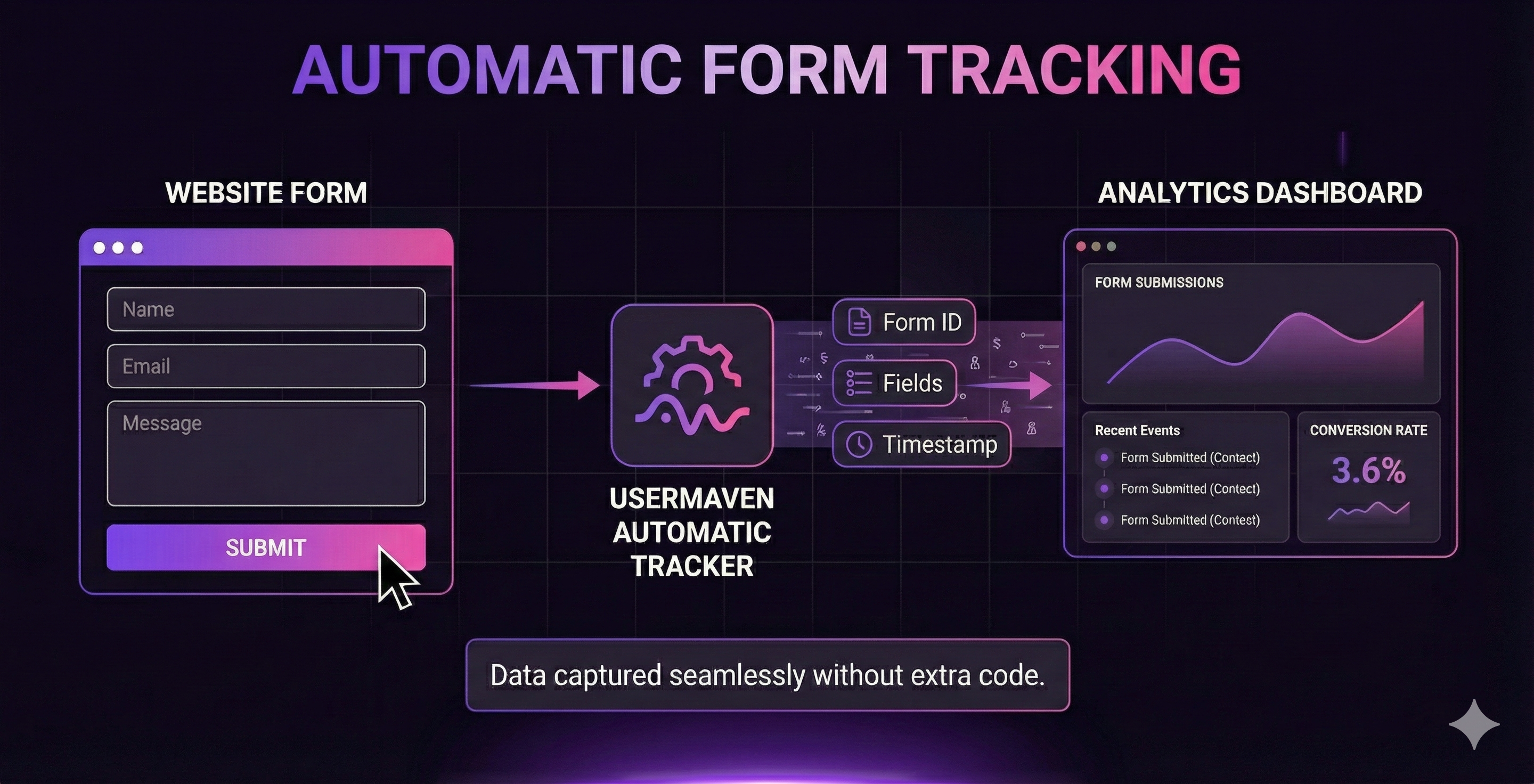
Automatic form tracking captures form submissions on your website without requiring additional code for each form. When enabled, Usermaven detects form submissions and automatically collects form data.
How it works
Once the Usermaven tracking script is installed on your website, it can automatically capture most standard forms. The auto tracker works by listening for any submit events on <form> elements on your website.
Auto tracking allows you to easily track forms from your site, however it may not be the best option for all websites depending on your setup. The auto tracker can pick up some <form> elements that you may not wish to track, and it can also capture duplicate events if a user submits the form more than once.
If you find this method is not compatible with your site, please review our Manual Form Tracking options you can implement on your website.
If you are having trouble getting your forms to track, please contact us and let us know. We will be happy to look into this for you and recommend the best tracking method for your implementation.
Enabling automatic form tracking
Before you begin, make sure the Usermaven tracking script is installed on your website and you have access to modify the tracking script configuration.
By default, form tracking is disabled. You can enable it by adding the data-form-tracking attribute to your Usermaven tracking script.
JavaScript Snippet
<script type="text/javascript">
  (function () {
    window.usermaven = window.usermaven || (function () { (window.usermavenQ = window.usermavenQ || []).push(arguments); })
    var t = document.createElement('script'),
        s = document.getElementsByTagName('script')[0];
    t.defer = true;
    t.id = 'um-tracker';
    t.setAttribute('data-tracking-host', 'https://events.usermaven.com')
    t.setAttribute('data-key', 'YOUR_API_KEY'); // <-- Replace with your API key
    t.setAttribute('data-autocapture', 'true');
    t.setAttribute('data-form-tracking', 'all'); // <-- Enable form tracking
    t.src = 'https://events.usermaven.com/lib.js';
    s.parentNode.insertBefore(t, s);
  })();
</script>
NPM Package
const usermaven = usermavenClient({
  key: 'YOUR_API_KEY', // <-- Replace with your API key
  trackingHost: 'https://events.usermaven.com',
  autocapture: true,
  formTracking: 'all' // <-- Enable form tracking
});
React / Next.js
const usermavenClient = createClient({
  key: 'YOUR_API_KEY', // <-- Replace with your API key
  trackingHost: 'https://events.usermaven.com',
  autocapture: true,
  formTracking: 'all' // <-- Enable form tracking
});

function App({ children }) {
  return (
    <!-- Unsupported component: UsermavenProvider -->
      {children}
    </UsermavenProvider>
  );
}

export default App;
Tracking modes
The formTracking option accepts the following values:
Value | Description |
|---|---|
| Form tracking disabled (default) |
| Track all forms on the page |
| Track only forms with the |
| Explicitly disable form tracking |
Use 'all' to automatically capture every form submission on your website (see the Enabling automatic form tracking section above for complete setup instructions).
Use 'tagged' to capture only specific forms. Set data-form-tracking to 'tagged' in your tracking script:
JavaScript Snippet
<script type="text/javascript">
  (function () {
    window.usermaven = window.usermaven || (function () { (window.usermavenQ = window.usermavenQ || []).push(arguments); })
    var t = document.createElement('script'),
        s = document.getElementsByTagName('script')[0];
    t.defer = true;
    t.id = 'um-tracker';
    t.setAttribute('data-tracking-host', 'https://events.usermaven.com')
    t.setAttribute('data-key', 'YOUR_API_KEY'); // <-- Replace with your API key
    t.setAttribute('data-autocapture', 'true');
    t.setAttribute('data-form-tracking', 'tagged'); // <-- Track only tagged forms
    t.src = 'https://events.usermaven.com/lib.js';
    s.parentNode.insertBefore(t, s);
  })();
</script>
NPM Package
const usermaven = usermavenClient({
  key: 'YOUR_API_KEY', // <-- Replace with your API key
  trackingHost: 'https://events.usermaven.com',
  autocapture: true,
  formTracking: 'tagged' // <-- Track only tagged forms
});
React / Next.js
const usermavenClient = createClient({
  key: 'YOUR_API_KEY', // <-- Replace with your API key
  trackingHost: 'https://events.usermaven.com',
  autocapture: true,
  formTracking: 'tagged' // <-- Track only tagged forms
});

function App({ children }) {
  return (
    <!-- Unsupported component: UsermavenProvider -->
      {children}
    </UsermavenProvider>
  );
}

export default App;
Then mark the forms you want to track by adding the data-um-form attribute:
<!-- This form WILL be tracked -->
<form data-um-form action="/submit" method="post">
  <input type="email" name="email" />
  <button type="submit">Subscribe</button>
</form>

<!-- This form will NOT be tracked (no data-um-form attribute) -->
<form action="/search" method="get">
  <input type="text" name="q" />
  <button type="submit">Search</button>
</form>
What data is captured
When a form is submitted, Usermaven captures form details including:
Property | Description |
|---|---|
| The form's |
| The form's |
| The form's |
| The form's |
| The form's CSS classes |
| Custom data attributes on the form |
For each form field (input, select, textarea), Usermaven also captures:
Property | Description |
|---|---|
| Element type (input, select, textarea) |
| Input type (text, email, checkbox, etc.) |
| Field's |
| Field's |
| Field value (with sensitive data scrubbed) |
| Field's CSS classes |
| Custom data attributes on the field |
Excluding sensitive fields
Usermaven automatically protects sensitive data. Password field values are never captured, and credit card numbers and Social Security Numbers are detected and replaced with <redacted>.
To manually exclude specific fields from tracking, add the um-no-capture class to any field:
<form data-um-form>
  <input type="email" name="email" />

  <!-- This field will NOT be captured -->
  <input type="text" name="credit_card" class="um-no-capture" />

  <!-- This field will NOT be captured -->
  <input type="text" name="ssn" class="um-no-capture" />

  <button type="submit">Submit</button>
</form>
Example: Captured form data
Here's an example of the data captured when a form is submitted:
{
  "event_type": "$form",
  "event_attributes": {
    "form_id": "contact-form",
    "form_name": "contact",
    "form_action": "https://example.com/submit",
    "form_method": "post",
    "form_class": "contact-form",
    "fields": [
      {
        "tag": "input",
        "type": "text",
        "id": "name",
        "name": "full_name",
        "value": "John Doe"
      },
      {
        "tag": "input",
        "type": "email",
        "id": "email",
        "name": "email",
        "value": "john@example.com"
      },
      {
        "tag": "textarea",
        "id": "message",
        "name": "message",
        "value": "Hello, I have a question..."
      }
    ]
  }
}
Verifying form tracking
To verify that form tracking is working, enable form tracking on your website using one of the methods above, submit a test form, check the browser console for any errors, and view your Usermaven dashboard where the form should appear in the Forms section within a few minutes.
For debugging, open your browser's Developer Tools (F12) and check the Network tab. After submitting a form, you should see a request to your Usermaven tracking host with event type $form.
Limitations
Automatic form tracking may not work in the following scenarios:
AJAX forms that don't trigger a standard form submission event
Forms inside iframes from different domains
Shadow DOM forms in web components
Forms without a
<form>element (div-based forms)Single Page Applications with custom form handling
For these cases, use Manual Form Tracking instead.
What's next?
Manual Form Tracking - Track forms that aren't auto-captured
Managing Forms - Configure field mappings for captured forms
Lead Tracking - Convert form submissions to leads
Was this article helpful?