White Label
White Label allows you to remove Usermaven branding and use your own branding, domain, and email settings. This gives your analytics dashboard a fully customized look and feel for your organization.
See your brand everywhere
With White Label, you can:
- Replace Usermaven branding with your own logo, colors, and name.
- Use a custom domain for your dashboard and tracking scripts.
- Send emails from your own email address with your branding.
- This makes your dashboard and communications fully aligned with your brand.
Turn on white label in seconds
- Go to Account Settings.
- Click White Label.
- Toggle Enable White Label to turn it on.
Once enabled, you’ll unlock all options for branding, domains, and emails.
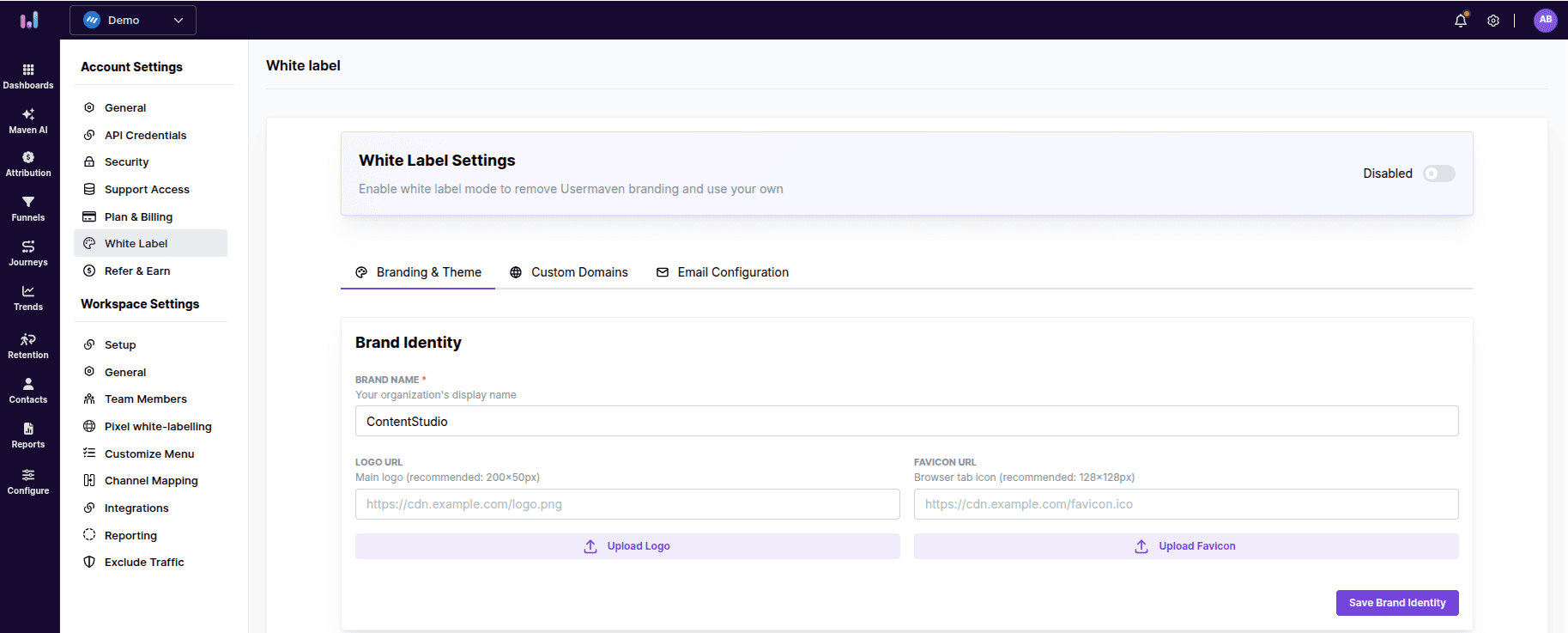
Make your dashboard look like yours
- Enter your Brand Name – this will appear across the dashboard.
- Add your Logo URL (recommended 200x50px).
- Add your Favicon URL (recommended 128x128px).
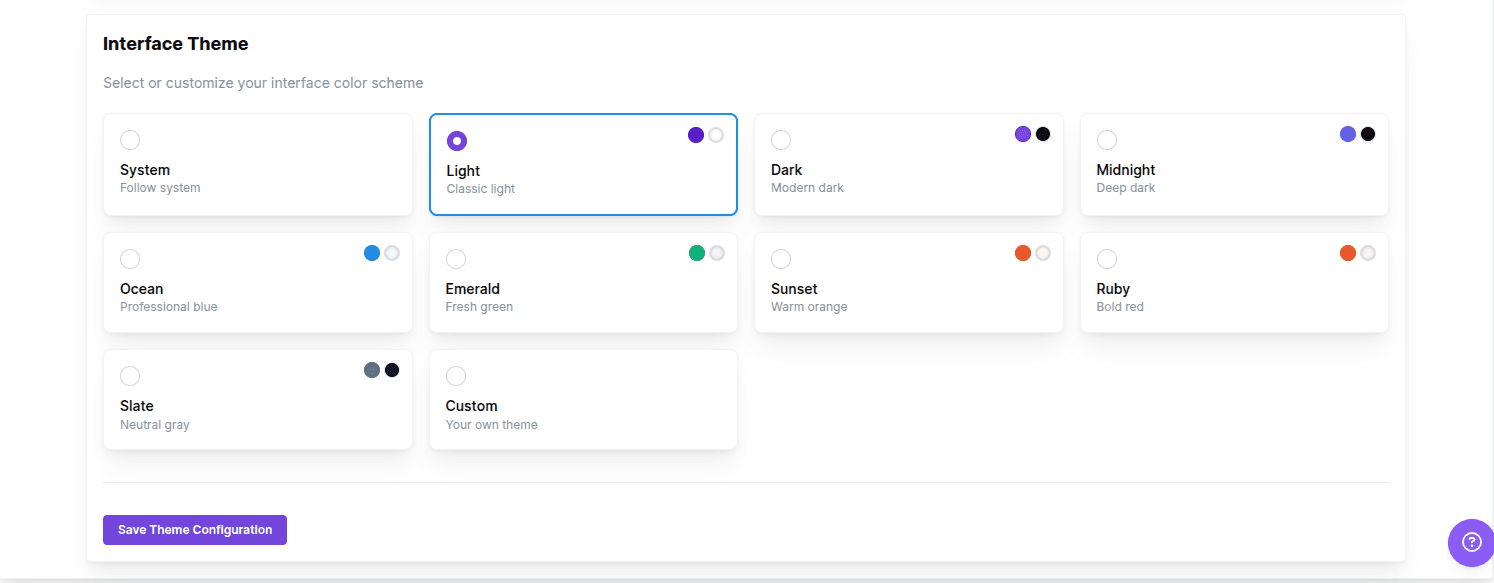
- Pick an Interface Theme:
- System (follows your system theme)
- Light (classic light)
- Dark (modern dark)
- Midnight (deep dark)
- Ocean (professional blue)
- Emerald (fresh green)
- Sunset (warm orange)
- Ruby (bold red)
- Slate (neutral gray)
- Custom (your own colors)
Your dashboard instantly reflects your branding choices.
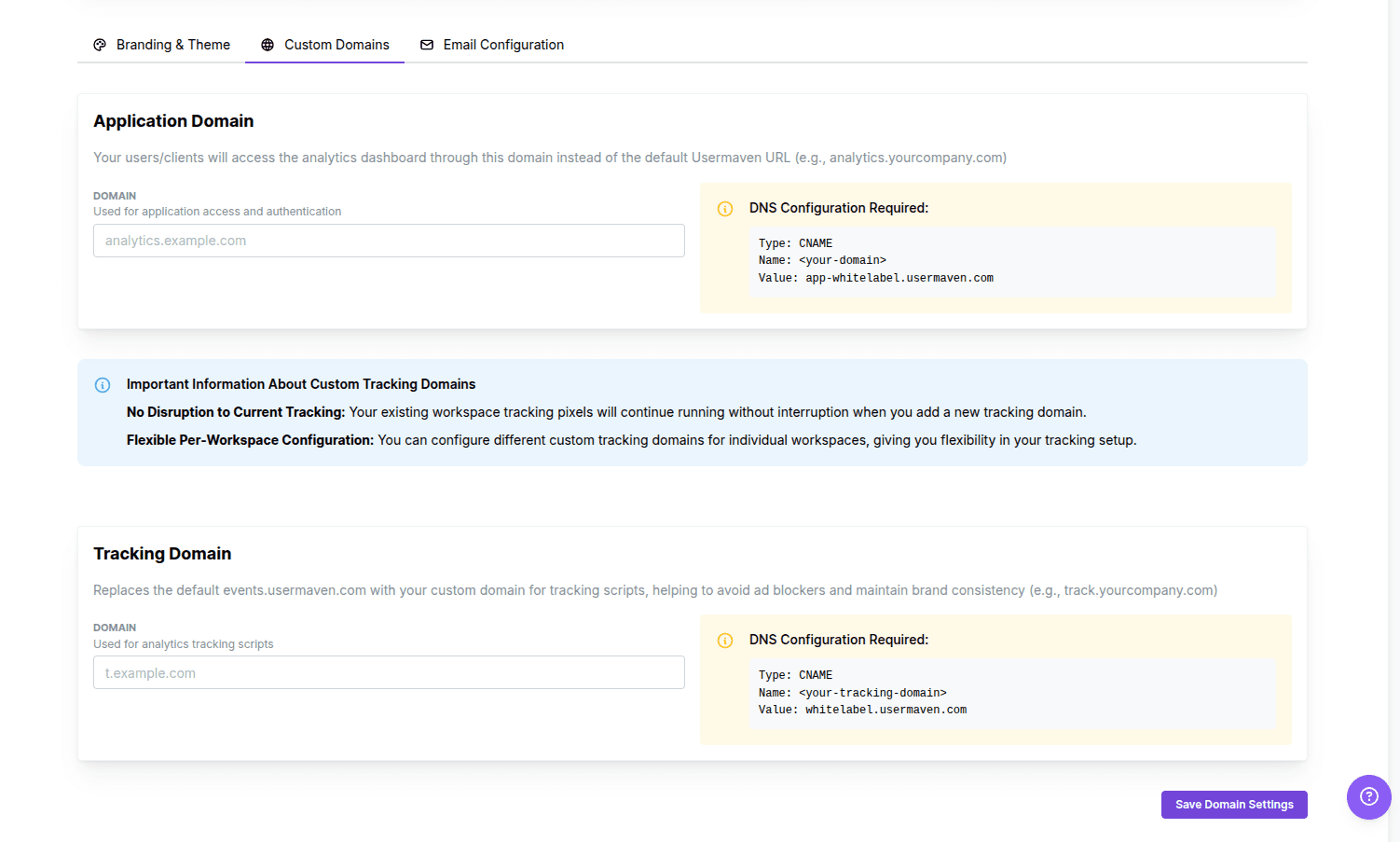
Make your dashboard your own domain
- Enter your Application Domain (e.g., analytics.yourcompany.com).
- Update your DNS settings:
- Type: CNAME
- Name:
<your-domain> - Value: app-whitelabel.usermaven.com
Your users access your dashboard through your domain, not Usermaven’s.
Keep your tracking on brand
- Enter your Tracking Domain (e.g., track.yourcompany.com).
- Update your DNS:
- Type: CNAME
- Name:
<your-tracking-domain> - Value: whitelabel.usermaven.com
Custom tracking domains avoid ad blockers and keep your branding consistent. Your current tracking pixels keep running without interruption. Different workspaces can use different tracking domains.
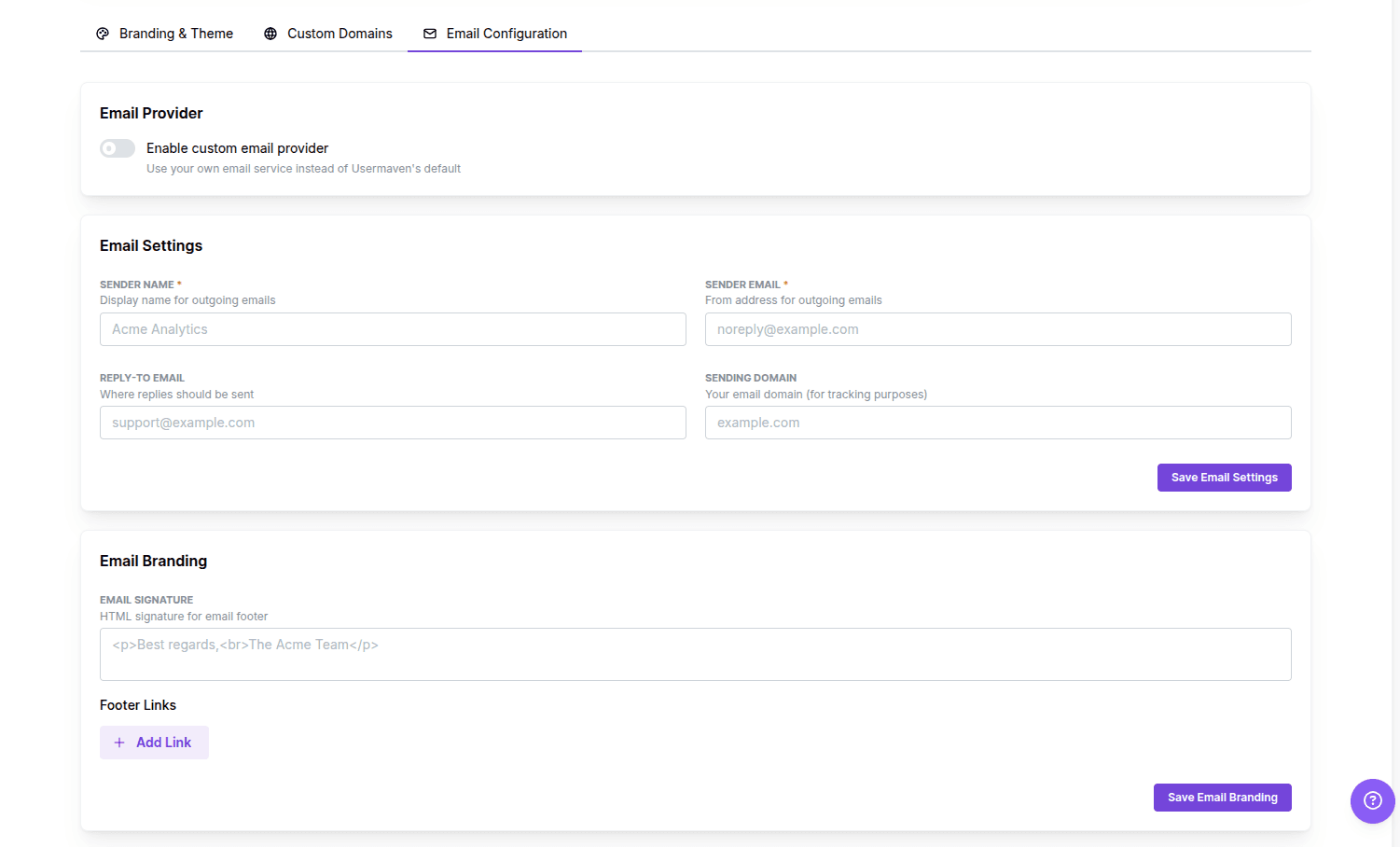
Send emails from your brand
- Enable Custom Email Provider.
- Fill in:
- Sender Name – name shown in emails.
- Sender Email – email address that sends messages.
- Reply-To Email – where replies go.
- Sending Domain – your email domain for tracking.
- Add email branding:
- Email Signature – HTML footer (e.g., Best regards, The Acme Team).
- Footer Links – optional links for your emails.
- Every email now matches your brand, not Usermaven.
What to know before you start
- White Label must be enabled to access all features.
- DNS setup is required for the custom application and tracking domain.
- Your existing tracking scripts won’t be disrupted.
- We provide a single tracking domain, which can be used across multiple workspaces.
- Pixel white-labeling allows you to associate the tracking pixel with different workspaces while continuing to use the same tracking domain.
You can learn more about pixel white-labeling here: https://usermaven.com/docs/getting-started/pixel-whitelabeling
Last updated on