If your GA4 reports lose events, disagree with ad platforms, or change after a tagging update, moving collection through a server may be worth exploring. But server-side tracking is not a switch that automatically fixes inaccurate attribution. The implementation still needs correct events, consent handling, and testing.
This guide shows how to configure GA4 server-side tracking using Google Tag Manager (GTM), test each stage of the data flow, and decide whether the additional infrastructure is justified. A well-configured server-side tracking setup gives teams more control over how event data is collected and forwarded to analytics and advertising platforms.
Key takeaways
- Route events deliberately: GA4 server-side tracking normally sends browser events to a tagging server before forwarding them to Google Analytics.
- Keep the browser layer: A server container does not detect website clicks or page views by itself. Your web tag still initiates those events.
- Test both directions: A request reaching your server does not prove GA4 received the right event. Inspect the outgoing request and GA4 DebugView too.
- Avoid double collection: Running direct GA4 delivery alongside server-routed delivery to the same destination can inflate results.
- Separate collection from attribution: Better event delivery alone cannot connect disconnected CRM opportunities, customer journeys, and revenue.
What is GA4 server-side tracking?
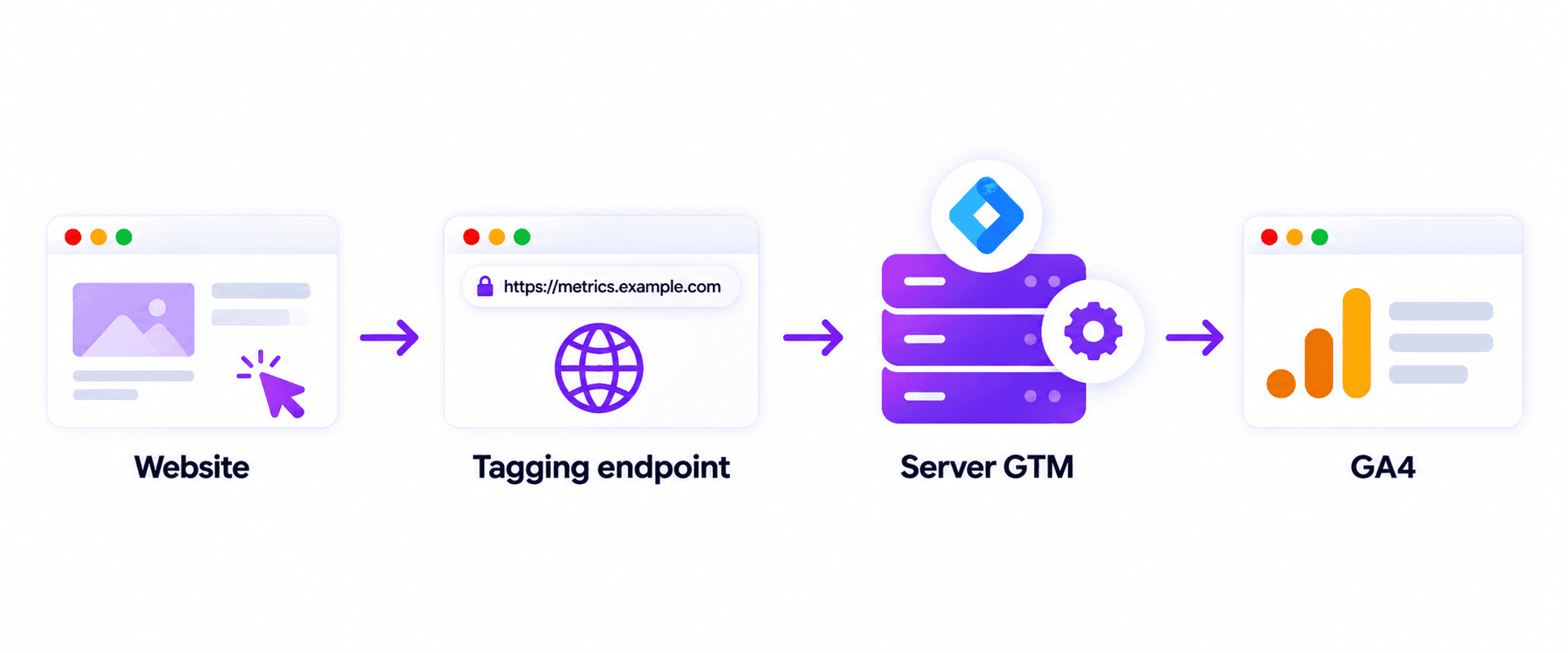
GA4 server-side tracking routes measurement requests through an intermediary server environment, commonly a GTM server container, before sending events to Google Analytics 4. The server container receives HTTP requests, turns them into events, applies its configured logic, and sends data to permitted destinations.
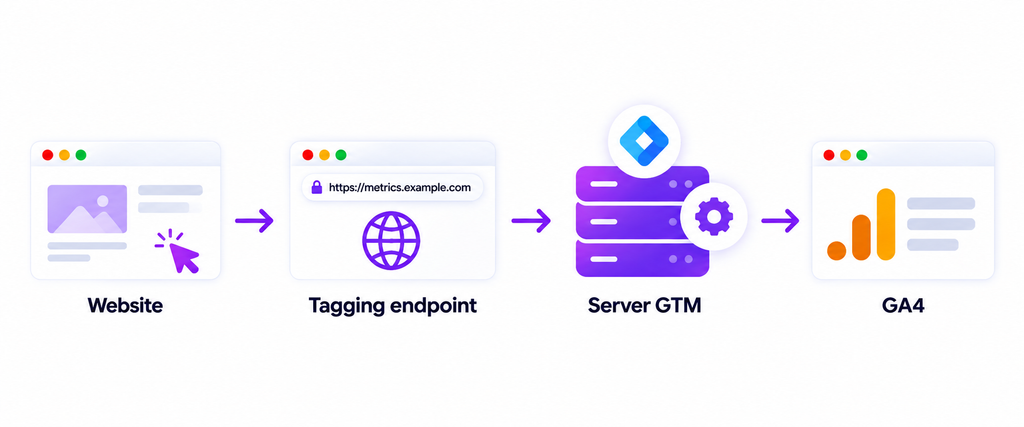
With standard browser-based tagging, a Google tag can send measurement requests directly to Google. In the server-side model, the browser usually sends them to an endpoint you control, often on a first-party subdomain. The tagging server then forwards the relevant events to GA4.
The word server-side is easy to misunderstand here. It does not necessarily mean every event originates on your application backend. A button click still happens in the browser. Server-side GTM changes where a request is processed and forwarded, while backend-generated events are a separate collection option.
How GA4 server-side tracking works
The core flow is straightforward:
Website or app → Google tag → Tagging server → GA4 client → GA4 server tag → Google Analytics
First, a Google tag records a website interaction such as a page view or form submission. It sends a request to the configured server URL rather than relying on the default direct GA4 endpoint.
Next, the GA4 client in the server container recognizes the request and creates an event data object. A server-side GA4 tag uses the event data and a trigger to forward the event to Google Analytics.
Because the server controls processing before forwarding, teams can govern which parameters reach downstream tools. This can help with data standardization and privacy controls, but it also creates new operational responsibilities.
Client-side GA4 vs. server-side GA4
| Area | Direct browser tracking | Server-routed tracking |
| Event source | Browser tag for on-page actions | Browser tag usually still captures on-page actions |
| Request path | Browser to GA4 | Browser to tagging server, then GA4 |
| Processing control | Mostly on the client and GA4 side | Additional controls in the server container |
| Infrastructure | Relatively simple | Hosting, domain, tagging server, monitoring |
| Common failure | Missing or misfiring web tag | Web tag, server routing, or outgoing tag can fail |
| Privacy obligations | Consent and data governance still required | Consent and data governance still required |
When is GA4 server-side tracking worth it?
The strongest reason is not a promise of perfect measurement. It is the ability to control a measurement pipeline that would otherwise run almost entirely in the browser.
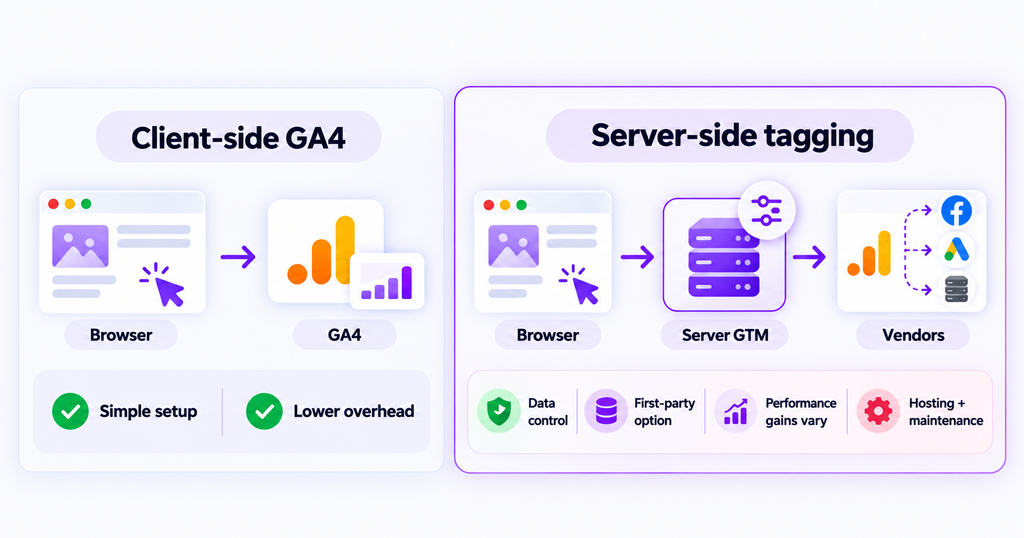
More control over data sent to vendors. Server GTM supports transformations that can allow, augment, or exclude selected event parameters. This helps teams limit unintended data sharing when properly configured and audited.
First-party collection options. Routing requests through a custom endpoint under your own site can support first-party cookie configurations and reduce reliance on a third-party collection domain. Results vary by hosting arrangement, browser policy, consent, and network conditions.
Potential performance benefits. Some third-party processing can move off the browser, but your website still needs a web tag or another mechanism to observe interactions. Page-speed improvements depend on the final implementation, not simply on enabling a server container.
Additional cost and complexity. A server container needs hosting, domain configuration, error monitoring, and maintenance. The default testing deployment should not be treated as a production architecture, and cloud charges may apply.
For a small website with clean reporting and limited engineering support, a well-maintained client-side GA4 installation may be enough. For a larger marketing stack that requires explicit routing and data governance, server-side tagging becomes more compelling.
How to set up GA4 server-side tracking with Google Tag Manager
The walkthrough below follows Google’s server-side Tag Manager architecture. It assumes you have a GA4 property, a website you can tag, and appropriate permissions in GTM, Google Cloud or your chosen hosting provider, and your DNS environment.
Google’s server-side tagging setup is a primary reference for the implementation. Menu labels can evolve, so check them against your current GTM workspace before publishing changes.
Step 1. Audit your current GA4 implementation
Before creating new containers, document where GA4 events originate. Check whether the Google tag is installed through GTM, a CMS integration, embedded gtag.js, or more than one method.
Record the GA4 measurement ID, active page-view and conversion events, custom parameters, existing consent settings, and any direct Google Ads tags. Use GTM Preview and browser developer tools to check whether a single action already produces duplicate requests.
This baseline matters because adding server routing on top of existing direct delivery can create an additional path for the same event. If you’re replacing an active measurement setup, plan a staged migration rather than switching all traffic immediately.
Step 2. Create and deploy a GTM server container
In Google Tag Manager, create a new container and select Server as the target platform. Then choose how to deploy the tagging server.
Google supports automatic provisioning with Google Cloud Run, and documentation also describes manual deployment on other infrastructure. A managed hosting provider may simplify setup, but it still needs a valid GTM server container and functioning endpoint.
After deployment, note the server URL generated by the host. Confirm the endpoint is reachable before changing website tags. Review anticipated request volume, scaling, uptime, and billing so a test environment does not unexpectedly become your production dependency.
Step 3. Configure a first-party tagging domain
A default cloud-hosted address can carry requests, but a custom domain gives you more control over how the collection endpoint fits your site. An example is https://metrics.example.com for a website hosted at www.example.com.
Google distinguishes a same-origin endpoint, a subdomain, and a default cloud-provider domain. Same-origin delivery is preferable when feasible, but generally requires additional proxy, CDN, or load-balancer work.
Set up the required DNS mapping and HTTPS configuration with your host. Then verify that the domain resolves correctly and accepts requests. Do not assume adding a DNS record alone completes the server-side setup.
Step 4. Configure the GA4 client and server GA4 tag
Open your server container and go to Clients. Confirm the built-in Google Analytics: GA4 client is available and can claim GA4 collection requests. Google’s fundamental setup guide uses the default GA4 request paths and explains how the client converts incoming requests into event data.
Next, create a server-side tag of type Google Analytics: GA4. The tag can inherit relevant measurement identifiers and event parameters from the event data object produced by the GA4 client.
Create an appropriate Custom trigger for events generated by your GA4 client, rather than using an All Pages trigger that would not represent every event. In Google’s documented example, a condition on Client Name selects the GA4 client. Name the client and trigger consistently so that future reviewers understand which events are permitted to fire the tag.
Step 5. Route the web Google tag through the server
In the web GTM container, use a Google tag or Google Analytics destination tag and provide the server endpoint in its configuration settings. Google’s current guide recommends a reusable Google tag: Configuration settings variable containing the parameter server_container_url.
Parameter name: server_container_url
Parameter value: https://metrics.example.com
Assign that settings variable to the appropriate Google tag. Make sure the tag initializes before the events that depend on it. Your existing event tags and triggers still need to fire for the intended interactions.
If your website uses gtag.js instead of GTM, Google’s documentation also supports setting server_container_url in the tag configuration. Choose one correctly maintained route rather than leaving duplicate installations in place.
Step 6. Test requests before publishing
With your web and server containers in Preview mode, visit the website and trigger a controlled test event such as a page view or permitted form submission. Inspect the browser’s Network panel for requests to your tagging server.
In the server container Preview panel, confirm that an incoming GA4 collection request appears, the GA4 client claims it, and the matching event is created. Check that the GA4 server tag fires and that its outgoing HTTP request goes to Google Analytics.
Finally, enable a debug session and look for the test event in GA4 DebugView. This three-stage inspection is more informative than simply seeing a green tag status in GTM. Inspect the Request, Tags, Variables, Event Data, and Console panels when troubleshooting.
Step 7. Migrate carefully and monitor the cutover
If you already rely on GA4 reporting, compare your new path with a controlled baseline before replacing it. Google’s instructional course describes temporarily collecting into separate GA4 properties during migration, then retiring the direct path after verifying parity.
Do not send both routes indiscriminately to the same destination and assume GA4 will remove duplicated events. Review CMS plugins, embedded tags, and GTM triggers before publishing. Keep rollback steps documented in case collection drops after the cutover.
For the first few days after launch, monitor event counts, session and campaign parameters, request failures, consent behavior, and cloud usage. Investigate differences instead of assuming a server-side count is automatically more accurate.
How to verify that GA4 server-side tracking is working
Treat validation as a chain of evidence. Each checkpoint answers a different question.
| Checkpoint | Evidence to look for | What a failure suggests |
| Browser | Request to your tagging server | Routing variable, tag, consent, or CSP issue |
| Server request | Incoming `collect` request | Domain, hosting, client, or network issue |
| Server event | GA4 client produces event data | Client matching or request-format issue |
| Outgoing request | Server GA4 tag sends request | Tag, trigger, transformation, or destination issue |
| GA4 DebugView | Expected event appears in debug session | Debug configuration, delivery, consent, or processing issue |
Check GA4 DebugView without misreading it
Use Tag Assistant or GTM Preview to enable debug mode on your test device. In GA4, open Admin → Data display → DebugView and inspect events from the selected debug device.
An empty DebugView does not always mean the tagging server failed. Events can be absent because debug mode is not enabled or because privacy settings and denied analytics consent prevent the expected collection.
Also compare the event name, relevant parameters, transaction or lead identifiers, and timestamp. Arrival in DebugView establishes test visibility, not end-to-end attribution accuracy.
Run a realistic QA checklist
Test at least a first page view, an important interaction, a completed conversion, a denied-consent path, and a repeat interaction that should not create a second business outcome.
For a purchase workflow, use a genuine test transaction and inspect the transaction_id and value, not just the firing of a purchase tag. For lead generation, distinguish a form button click from a confirmed form submission or qualified lead created in the CRM.
The objective is to verify business-event definitions, not to maximize the number of events arriving in a dashboard.
Common GA4 server-side tracking problems and fixes
No request reaches the server container. Confirm the server URL is correct and publicly reachable. Inspect the web tag, initialization order, site content-security policy, browser Network panel, and consent settings. A correct GA4 measurement ID does not fix an incorrectly configured transport path.
The request arrives but no event is produced. In server Preview, check whether the GA4 client claims the request. Confirm appropriate request paths are enabled and that another client is not claiming the same request first.
An event is created but GA4 never receives it. Inspect the server GA4 tag, trigger conditions, measurement destination, outgoing HTTP response, and Console errors. A transformation that excludes required parameters can also interrupt delivery.
Page views or conversions are doubled. Look for a CMS analytics plugin plus GTM, multiple Google tags, direct GA4 delivery still active during server delivery, or multiple triggers for the same conversion. During migration, test alternative implementations in separate properties when appropriate.
Traffic acquisition changes unexpectedly. Check landing-page URLs, UTM parameters, referral handling, client identifiers, session information, and whether collection moved to a different domain context. A successful event request is not sufficient to prove acquisition reporting remains consistent.
Events appear only for consenting users. Verify the current consent implementation and expected collection rules. Server-side routing is not a reason to override a visitor’s privacy preferences.
Costs rise after deployment. Review hosting utilization, request rates, autoscaling, and unnecessary tagging. Establish ownership of ongoing infrastructure maintenance instead of leaving it to a one-time marketing setup.
GA4 server-side tagging vs. Measurement Protocol
These terms are frequently used interchangeably, but they solve different problems.
GTM server-side tagging is a processing and routing environment. It commonly receives browser measurement requests through a server container and then forwards them to GA4 or another destination.
GA4 Measurement Protocol is an HTTP API for sending events to Google Analytics, including backend and offline interactions. Google describes it as a complement to automatic collection through web or app tagging, not a general substitute for the whole client measurement setup.
| Approach | Typical use | Core responsibility |
| GTM server container | Route and govern website measurement events | Host, receive, transform, forward, test |
| GA4 Measurement Protocol | Send backend or offline GA4 events | Construct valid event payloads and identity/session context |
| Combined architecture | Join browser and confirmed backend events | Control definitions, identifiers, consent, and duplicates |
For example, a website page view may pass from a Google tag through a server GTM container. A confirmed subscription renewal may originate in your billing backend and be sent using a suitable server-to-server method. They should not be treated as interchangeable just because both touch a server.
Does GA4 server-side tracking solve marketing attribution?
Not by itself. Moving an event through a server changes the collection architecture. Attribution asks a different question: which channels and touchpoints contributed to an outcome, and how should credit be assigned?
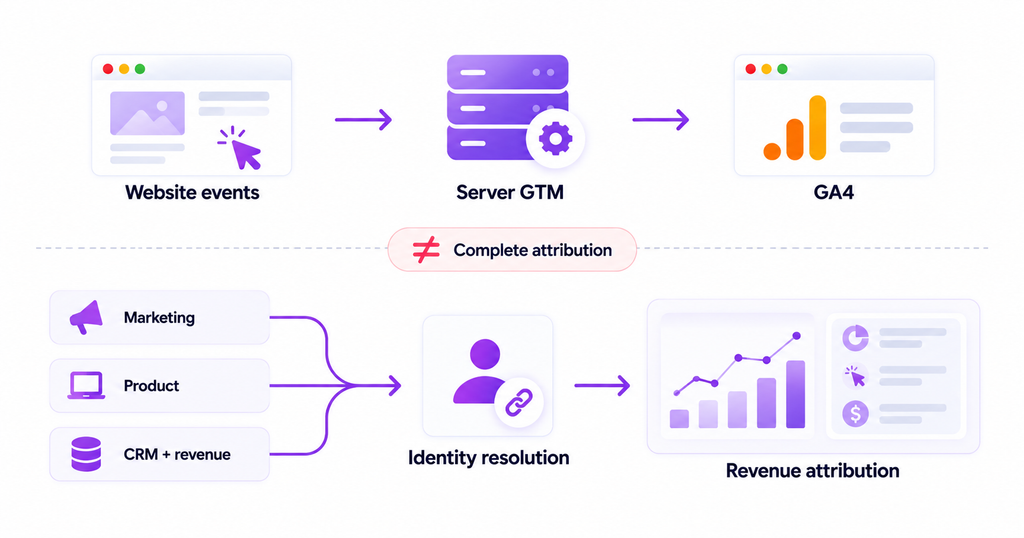
A reliable generate_lead event may tell you that a prospect completed a form. It does not automatically reveal whether that prospect later became a qualified opportunity, signed a contract, or renewed. Those outcomes may live in a CRM, payment system, or product database.
This is where event collection, identity resolution, and revenue attribution must be considered separately. A clean GA4 data stream is valuable, but it is only one input to a more complete measurement model. Teams evaluating a broader customer journey analytics approach should ask whether they can connect initial acquisition with product engagement, pipeline stages, and actual revenue.
Where Usermaven fits
Usermaven is primarily marketing attribution software with additional web and product analytics capabilities. For B2B SaaS, its B2B SaaS solution focuses on connecting marketing interactions, product activity, CRM pipeline, and revenue to evaluate which channels bring valuable customers.
Usermaven also provides a documented HTTP Events API for sending backend events into Usermaven. That is not the same thing as configuring a GA4 server container, nor does it imply events are automatically forwarded to GA4.
If your goal is specifically to route GA4 requests, follow Google’s server-side GTM documentation. If your broader problem is connecting acquisition activity to qualified opportunities and revenue across a longer buying journey, explore how Usermaven handles attribution and linked customer outcomes.
When reporting needs move beyond event delivery, you can book a Usermaven demo to discuss how your marketing, product, and CRM data could support revenue-focused attribution.
GA4 server-side tracking implementation checklist
Before switching a production property, confirm the following:
- One documented owner is responsible for the web tag, server container, hosting, and consent configuration.
- The web Google tag points to the correct server URL and expected conversion events still fire.
- The GA4 client claims incoming requests and the server GA4 tag forwards the intended events.
- Tests confirm event names, parameters, identifiers, values, and relevant session context.
- Unintended direct-and-server duplicate delivery has been eliminated.
- Consent behavior has been reviewed under the jurisdictions and policies that apply to the site.
- Hosting costs, uptime monitoring, and rollback steps are documented.
- A measurement owner checks discrepancies after launch rather than assuming GA4 reports are immediately final.
Final thoughts
GA4 server-side tracking is useful when you need more control over how web events are collected, processed, and sent to Google Analytics. The right implementation starts with a tagging audit, builds a reliable server route, and validates the complete event journey before changing production measurement.
It is equally important to recognize the boundary. Clean event delivery supports better analysis, but connecting those events to customers, pipeline, and revenue requires a broader attribution strategy. Build that distinction into your reporting decisions from the start.
FAQs
Is GA4 server-side tracking free?
GTM’s server-side container software is available, but the tagging server requires hosting. Cloud providers may offer free-tier capacity, yet production traffic, scaling, and managed services can incur recurring costs. Budget for monitoring and maintenance as well.
Do I still need a Google tag in the browser?
Usually, yes, for website interactions. A server container cannot observe a visitor clicking a button by itself. A web tag, app SDK, or another event source must supply the interaction data.
Does server-side tracking block ad blockers or recover every lost event?
No. A first-party collection endpoint may improve delivery in some environments, but browser policies, network blockers, user settings, and consent still apply. Avoid treating recovered-event claims as guaranteed outcomes.
Can I use server-side GTM and GA4 Measurement Protocol together?
Yes, when designed deliberately. They have different responsibilities: GTM provides a routing and processing environment, while Measurement Protocol submits server-originated events to GA4. Align identifiers and prevent duplicate business outcomes.
Why do GA4 event counts increase after migration?
The usual reasons include duplicate Google tags, direct and server-routed delivery being active at the same time, or a conversion firing on multiple triggers. Inspect the browser, server preview, and GA4 event records before changing attribution settings.
Is server-side GA4 better for privacy compliance?
It can offer greater control over what data leaves your server, but it does not automatically make tracking compliant. Consent management, retention policies, data minimization, contracts, and applicable laws still matter.

Written by
Junaid Ahmed
Content Writer & Digital Marketer
Junaid Ahmed is a content and copywriter with 3+ years of experience creating research-driven content across SaaS, B2B, ecommerce, and digital marketing. He specializes in turning complex topics into clear, practical content that helps marketers better understand their challenges, evaluate solutions, and make informed decisions. His work spans educational content, industry insights, and actionable marketing guides.
All articles by Junaid →