When someone clicks a Google ad, the landing-page URL may contain a string called gclid. It looks like random characters, but it can help connect an ad interaction with a later signup, purchase, or qualified lead. If the identifier disappears during a redirect or never reaches the measurement system, that connection may be lost.
GCLID (Google Click Identifier) is an automatically generated Google Ads click-tracking parameter. Understanding it is useful even if Google Ads handles most of the work behind the scenes, particularly when you need to reconcile Google Ads, GA4, CRM, and marketing attribution reports.
This guide explains how GCLID works, how it differs from UTMs and other click identifiers, when to preserve it, and how to diagnose missing or misattributed conversions.
Key takeaways
- GCLID identifies Google Ads interactions: Auto-tagging adds a click-related parameter to eligible landing URLs so measurement systems can associate subsequent actions with advertising activity.
- GCLID is not a UTM: The click identifier supports Google Ads matching, while UTMs describe campaign context for broader marketing reporting.
- Preserve it through the landing experience: Redirects, forms, domain changes, and tracking scripts must handle the identifier correctly, subject to applicable privacy choices.
- Not every visit has GCLID: Privacy-restricted contexts and some campaign types may use gbraid or wbraid or provide limited click-level information.
- Measure the outcome, not just the click: Google Ads, GA4, your CRM, and Usermaven can answer different questions about the same journey. Their totals need consistent definitions.
What is GCLID?
GCLID stands for Google Click Identifier. It is a parameter that Google Ads auto-tagging can append when someone clicks an eligible advertisement. The value acts as a matching reference between an ad interaction and later activity that a correctly configured measurement system records.
For example, a person clicking an ad for a SaaS product might arrive at this illustrative address:
https://example.com/pricing?gclid=EXAMPLE_CLICK_IDThe parameter name is gclid; the value after the equals sign is the identifier. The example is synthetic and cannot be used to attribute a real conversion.
The value is opaque. You cannot reliably read the campaign, keyword, ad cost, or customer identity from the characters alone. Google Ads and integrated analytics systems use the identifier in conjunction with their own records and the data available for that visit.
A GCLID should not be described as a permanent ID for one individual. Google notes that in some circumstances the identifier may be created for an impression and reused when the same ad is clicked again. Its role is advertising measurement, not a universal person ID.
How does GCLID work?
The basic flow has five parts: a user interacts with an eligible Google ad, auto-tagging adds a click identifier, the landing page or analytics system captures permitted context, the business records a conversion, and the measurement platform matches eligible data back to advertising activity.
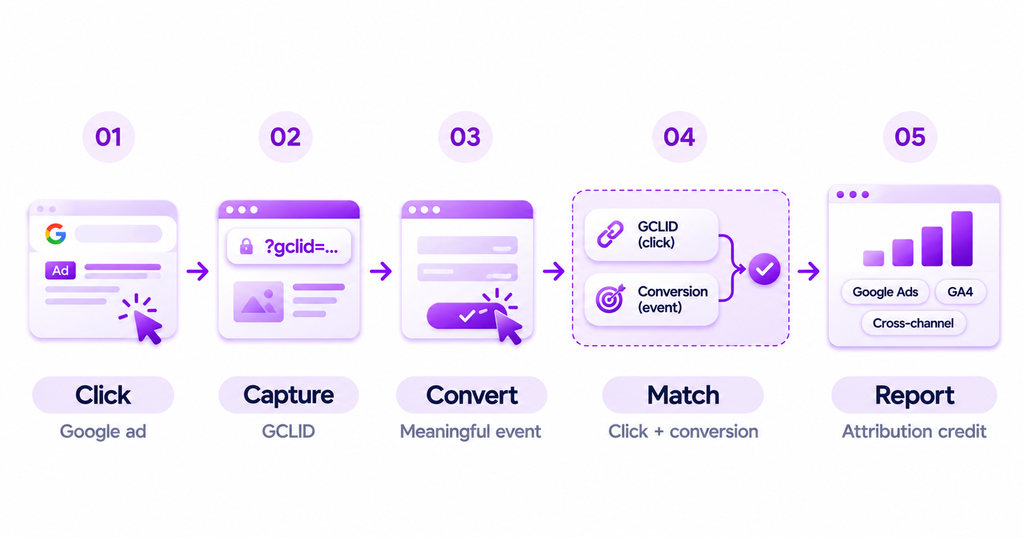
1. An eligible ad click reaches your landing page
With auto-tagging enabled, Google Ads adds GCLID to supported landing URLs. The user should land on the intended page without an error, and redirects should not drop the parameter before the relevant measurement system captures it.
2. Tracking records the visit
The Google tag or a supported analytics implementation can retain click context in first-party storage according to its configuration and consent settings. Usermaven or another analytics tool may also capture available identifiers and campaign information when its tracking is properly implemented.
3. The visitor takes a meaningful action
The outcome might be a trial signup, demo request, purchase, account activation, or a later sales milestone. Merely receiving a GCLID does not prove a conversion occurred. You still need an accurate event trigger and a consistent definition of success.
4. A platform matches the conversion
For an eligible conversion, Google can use the click identifier and other supported matching signals. Offline conversions require a suitable conversion action, timing information, and at least one accepted identifier. The specific fields depend on whether the implementation uses GCLID-based imports, enhanced conversions for leads, or another supported method.
5. Your reports assign credit
Google Ads reports eligible ad conversions under its settings. GA4 describes user and session activity within its own reporting model. A cross-channel platform can analyze additional marketing touchpoints and subsequent product or CRM outcomes. These reports are related but not necessarily identical.
GCLID vs. UTM parameters: What is the difference?
GCLID and UTMs both appear in URLs, but they solve different measurement tasks. A click identifier refers to a Google advertising interaction; UTM parameters explicitly label the campaign context you want analytics tools to recognize.
| Dimension | GCLID | UTM parameters |
|---|---|---|
| Generated by | Google Ads auto-tagging | Marketer or campaign-tagging system |
| Typical data | Opaque click identifier | Readable source, medium, campaign and other values |
| Primary role | Google Ads click and conversion matching | Campaign classification across channels |
| Works outside Google Ads? | Depends on supported integrations | Yes, when a tool captures them |
| Can one replace the other? | No | No |
For instance, a marketer can define utm_source=google and utm_medium=cpc to describe paid search traffic. That campaign labeling is not equivalent to a GCLID and cannot by itself reproduce Google Ads click-level matching.
Google recommends auto-tagging for Google Ads and GA4 integration. In GA4, auto-tagging normally takes priority over manual campaign tagging for linked Google Ads data. UTMs can still provide useful context to other measurement platforms and act as a fallback in some privacy-restricted cases.
For teams building a consistent UTM parameters strategy, the goal is to use descriptive campaign tags alongside supported click identifiers, not to choose one and discard the other. Google’s auto-tagging guidance explains why GCLID should remain enabled for eligible conversion measurement.
GCLID vs. GBRAID, WBRAID and FBCLID
Not every ad interaction produces the same identifier. Google may provide privacy-oriented BRAID signals in supported contexts, and Meta uses a separate click identifier for activity on its own platforms.
| Identifier | Platform | What it supports |
|---|---|---|
| gclid | Google Ads | Eligible ad-click matching and conversion measurement |
| gbraid | Google Ads | Privacy-oriented measurement in supported app and web scenarios |
| wbraid | Google Ads | Privacy-oriented conversion measurement in supported web scenarios |
| fbclid | Meta | Click context associated with Meta-platform links |
| event_id | Varies by implementation | Distinguishes conversion events and can support deduplication |
Google’s offline conversion upgrade documentation recommends sending available GCLID and BRAID identifiers and permitted user-provided data through supported workflows. BRAID values are not equivalent to identifiable individual clicks, so don’t treat them as interchangeable database keys.
An absent GCLID does not automatically indicate that auto-tagging is broken. Verify which identifier and measurement method are expected for the campaign type and device context before troubleshooting.
How to enable Google Ads auto-tagging
Google Ads auto-tagging is enabled by default on new accounts, but you should verify the actual setting rather than assume every account is configured correctly.
- Sign in to the relevant Google Ads account.
- Open Admin → Account settings.
- Expand Auto-tagging.
- Check Tag the URL that people click through from my ad.
- Save any changes and test an eligible landing-page URL.
These steps follow Google’s current auto-tagging setup instructions. For manager accounts, check whether cross-account conversion tracking requires additional configuration in the child account.
Test that a landing page accepts the parameter
You do not need to pay for a real ad click merely to check whether your website preserves an arbitrary query parameter. Open a test URL using a clearly synthetic value:
https://example.com/pricing?gclid=TesTER-123Check whether the page loads, whether its final URL still carries the value after redirects, and whether any required tracking reads the value before it is removed. This test verifies URL handling only; it does not establish that the value represents a real Google Ads interaction.
If you configure additional ValueTrack parameters, use Google’s tracking template reference and the built-in template Test function. Do not manually append a made-up GCLID to a production conversion upload.
How to capture and preserve GCLID through a conversion journey
Tracking failures often occur after the initial landing page. A visitor might be redirected to another domain, register through an embedded form, return days later, or become a qualified lead in a CRM. The original click context can be lost between those steps.
Preserve valid parameters through redirects
Test all hops between the ad’s final URL and the first page where the relevant tag runs. Watch for URL-cleaning scripts, shorteners, security rules, server redirects, and canonicalization logic that drop arbitrary query parameters too early.
If you want cleaner display URLs, preserve the parameter for the appropriate authorized measurement step before removing it from the browser address. Don’t assume an HTTP redirect can erase the identifier harmlessly.
Connect a lead to its original acquisition context
For a B2B conversion, capture the permitted click information at the landing stage and associate it with a stable lead or contact record when the user becomes identifiable. CRM fields and identifiers need to remain connected as the deal progresses from signup to qualified opportunity.
A click ID without a matching lead record cannot explain which downstream deal it contributed to. Conversely, a CRM deal without recorded marketing context cannot recreate a touchpoint that was never collected.
Respect consent, privacy and data minimization
A parameter may look anonymous, but it is still a tracking identifier that can be associated with behavior. Follow the site’s consent choices, contractual terms, and applicable data-protection requirements before collecting, retaining, or transmitting it. Avoid exposing click IDs unnecessarily in public logs or support tickets.
How does GCLID work with GA4?
GA4 and Google Ads can exchange campaign and conversion information when accounts are linked and collection is configured correctly. Auto-tagging helps Google Analytics classify eligible ad traffic and access Google Ads campaign context.
A GCLID in the address bar does not by itself guarantee that GA4 received the session, that the property is linked to the correct Google Ads account, or that a later event will be counted as a Google Ads conversion.
Check the right dimensions. Google Ads campaign information is more specific than general session source and medium; privacy-restricted identifiers may also lead to some unavailable campaign details. Google’s campaigns and traffic sources documentation explains reporting behavior when accounts are linked or unlinked.
Why Google Ads clicks and GA4 sessions differ
One person can click an ad multiple times but start fewer sessions, or return later and create another session. Tracking consent, page-load failures, ad blockers, invalid clicks, time zones, and data-processing differences also affect totals.
Do not diagnose a missing click identifier solely because Ads reports 500 clicks and GA4 reports 430 sessions. Check the click-to-session journey and use Google’s click and session discrepancy guidance before changing tags or budgets.
How to track offline conversions using GCLID
For a sales-led SaaS company, the most important action may occur well after the initial ad click. A visitor submits a form on Monday, becomes a sales-qualified lead on Thursday, and signs a contract later. Offline conversion tracking is the process of returning eligible confirmed business events to Google Ads.
A practical workflow is:
- Define the downstream event, such as a qualified lead or closed-won opportunity.
- Capture the permitted GCLID or other supported identifiers when the lead first arrives.
- Associate that data with a stable lead and later opportunity record.
- Record the actual conversion timestamp, applicable value, and unique order or event reference.
- Use an approved Google Ads import or enhanced-conversion method to send the event.
- Review import diagnostics, conversion action settings, and the resulting report.
Google’s offline conversion import guide explains both GCLID-based imports and enhanced conversions for leads. New API-based implementations should account for Google’s 2026 move toward Data Manager rather than copy older upload instructions unchanged.
Know the time limits
Google’s documentation indicates a 90-day age limit for GCLID-based offline conversion imports, and separate requirements can apply to enhanced conversions and other methods. A longer attribution lookback inside a third-party analytics tool does not extend Google’s upload acceptance window.
For long buying cycles, record and transmit qualifying intermediate milestones promptly, and measure closed-won revenue separately when it becomes available. Do not submit a synthetic early-stage event as a sale merely to meet a deadline.
How Usermaven supports GCLID tracking and Google Ads attribution
Usermaven is marketing attribution software with website and product analytics capabilities. It connects supported acquisition data with conversion goals, observed user journeys, and downstream business outcomes when the required events and integrations are configured.
In Usermaven, Google Ads attribution combines account-level cost and campaign data with the click and campaign context collected from website interactions. Its documentation emphasizes correctly configured auto-tagging, campaign parameters, and an ad_id value for detailed ad-level mapping.
1. Connect Google Ads to the right workspace
Go to Workspace Settings → Integrations, connect the relevant Google Ads account, authorize the required permissions, and select the account associated with the website tracked in that workspace. Check that the integration reports a successful sync.
The official Usermaven Google Ads integration documentation includes its recommended tracking template. It uses ValueTrack fields such as {campaignid}, {creative}, and {gclid} plus Usermaven-specific parameters such as ad_id and um_campaign_id.
Implementation note: Use the current official template, test it in the relevant Google Ads campaign type, and confirm that the final landing URL retains the expected values. Do not paste an untested template into all campaigns at once.
2. Define meaningful conversion goals
A lead form, trial signup, qualified opportunity, or subscription can each be a different business milestone. Create the appropriate goal using recorded events and verify its count and value before sending it to advertising platforms.
This distinction matters because Google Ads can optimize toward whichever event it receives. A high volume of form submissions is not necessarily a high volume of qualified opportunities or customers. Good conversion tracking starts with the right business definition.
3. Set up Google Ads Conversion Sync
Within Usermaven, open Configure → Conversion Syncs, create a new sync, choose the connected Google Ads account, select the existing conversion goal, and map it to the correct category. Review the value setup and activate the sync.
The conversion-sync guide describes the supported click identifiers, goal mapping, and delivery checks. If a conversion is not sent, check missing click data, match fields, lookback eligibility, the goal definition, and the sync’s run history rather than assuming every missing event is an API failure.
4. Use Enhanced Conversions for Leads where appropriate
In its October 28, 2026 release, Usermaven announced support for Google Ads Enhanced Conversions for Leads. This allows eligible first-party lead information to supplement click identifiers in supported matching workflows.
Enhanced conversions are not a substitute for correct event definitions, valid permissions, or reliable CRM associations. They improve the available matching options; they do not guarantee that every lead will be matched to an ad.
5. Compare advertising with downstream behavior
A marketer might discover that one campaign produces more trials, while another produces fewer but more activated and paid customers. Usermaven can investigate these differences using supported attribution, funnels, product analytics, and CRM data.
That is the broader value of google ads attribution: connecting spend and clicks to meaningful outcomes rather than treating a click identifier as the end of the measurement process.
How to troubleshoot GCLID tracking problems
When the numbers look wrong, separate the possible failures: parameter delivery, event capture, identity matching, conversion import, and attribution reporting. Fixing the wrong layer can make the discrepancy worse.
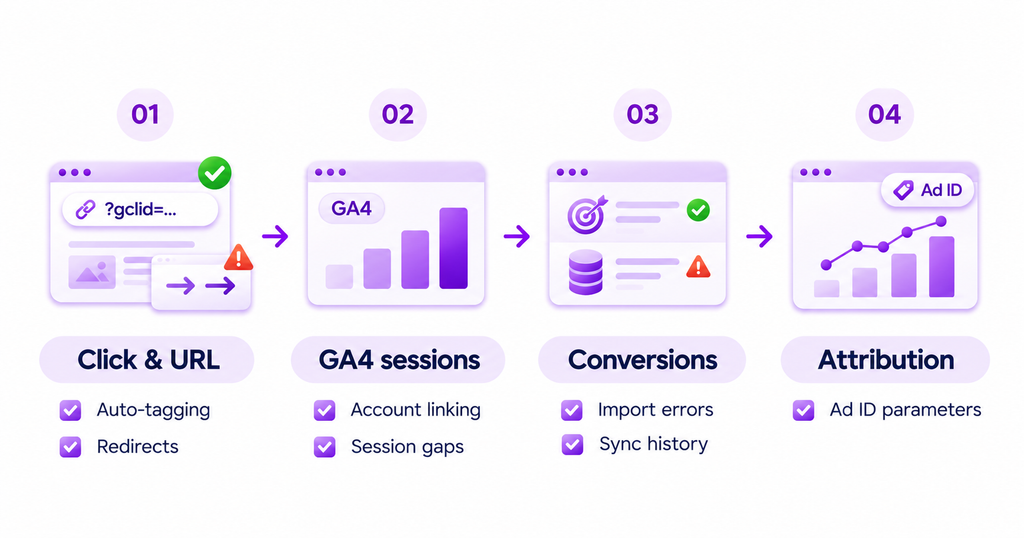
| Symptom | Possible cause | First diagnostic action |
|---|---|---|
| GCLID absent on an expected eligible click | Auto-tagging disabled, unsupported context, or privacy restrictions | Check account auto-tagging and campaign type |
| GCLID disappears after a redirect | Query-string stripping or URL rewrite | Inspect the complete redirect chain |
| GA4 reports unattributed paid sessions | Account-linking or campaign-context gaps | Check Google Ads link and traffic-source dimensions |
| Clicks exceed sessions | Distinct counting rules, tracking gaps, invalid clicks | Compare landing-page load, consent and click diagnostics |
| Offline event rejected | Wrong account, invalid timestamp, identifier or conversion name | Review Google Ads import diagnostics |
| Usermaven sync skipped an event | Missing identifier or match data, goal not met, time limits | Review Conversion Sync run history |
| Ad-level attribution is incomplete | Missing creative or Usermaven ad ID | Inspect actual landing URL parameters |
A fast verification checklist
- Auto-tagging enabled: Confirm the correct Google Ads account setting.
- Landing page works: Open an eligible link and test a synthetic parameter through redirects.
- Tag fires correctly: Validate the tracking implementation and applicable consent behavior.
- Lead context survives: Confirm the identifier is associated with the correct user or CRM record where appropriate.
- Conversion is real: Verify that the event reflects the defined business milestone.
- Import accepted: Review Google Ads or Usermaven delivery diagnostics.
- Reports reconciled: Compare dates, windows, values, model settings, and unique conversions before judging discrepancies.
Common GCLID mistakes to avoid
Replacing GCLID with UTMs: UTMs are valuable campaign descriptors, but they do not independently replace Google Ads click matching. Keep both when your measurement architecture requires them.
Removing query parameters too early: A clean URL is not useful if the redirect removes the click context before the tracking system captures it. Test before implementing URL cleanup.
Assuming every missing GCLID is a bug: Some privacy contexts use BRAID identifiers and may limit click-level detail. Check the campaign environment first.
Using an inconsistent sales milestone: Importing a form click as a qualified lead or a pending payment as a purchase distorts downstream optimization. Use verified business events.
Adding together incompatible reports: Google Ads, GA4, CRM and multi-touch attribution platforms may use different definitions, credit models, and dates. Reconcile them instead of expecting identical totals.
Treating GCLID as proof of incremental lift: Attribution can associate an outcome with an eligible click, but it does not independently prove the ad caused the outcome. Incrementality requires an appropriate experimental or causal approach.
Final thoughts
GCLID is useful because it can connect eligible Google Ads interactions with later conversions. Its value depends on the wider measurement setup: auto-tagging, correct landing-page handling, reliable events, appropriate identity matching, and the reporting rules used to interpret results.
Start with one important conversion, validate the click-to-outcome path, and only then extend the implementation across campaigns. For businesses with longer customer journeys, paid search attribution can help place Google Ads alongside other relevant marketing interactions.
Usermaven brings those supported acquisition and customer-outcome signals into a wider marketing attribution view. If your team wants to connect Google Ads with signups, product activity, CRM pipeline, and revenue, book a demo to explore how that measurement workflow could fit your stack.
FAQs about GCLID
1. What does GCLID stand for?
GCLID stands for Google Click Identifier. It is a Google Ads parameter that helps associate eligible ad interactions with conversion and analytics data.
2. Is GCLID the same as a UTM parameter?
No. GCLID is a Google Ads click identifier, while UTM parameters describe campaign source, medium, and other context. They can be used together in an appropriately configured tracking setup.
3. How do I enable GCLID in Google Ads?
Open Admin → Account settings → Auto-tagging and enable the setting to tag URLs that people click through from ads. New Google Ads accounts generally have auto-tagging enabled by default.
4. Why is GCLID missing from my URL?
Possible reasons include auto-tagging configuration, redirect stripping, privacy-related identifier differences, and campaign-specific restrictions. Confirm that the campaign should supply GCLID before treating its absence as a tracking error.
5. Can I remove GCLID from a URL?
You can remove it from a link being shared when tracking is not needed, but removing it before authorized measurement captures it may interfere with conversion matching. Consider privacy requirements and the needs of connected platforms before changing production URLs.
6. Does GCLID contain personal information?
It is not a readable name or email address. However, it is a tracking identifier that can be associated with user behavior, so handling it still requires appropriate consent, security, and data-governance controls.
7. Can I use GCLID for offline conversions?
Yes, when the relevant Google Ads conversion action and import method accept it. Capture the click identifier, associate it with the correct lead or conversion, supply valid timing, and follow Google’s current upload requirements and limits.

Written by
Junaid Ahmed
Content Writer & Digital Marketer
Junaid Ahmed is a content and copywriter with 3+ years of experience creating research-driven content across SaaS, B2B, ecommerce, and digital marketing. He specializes in turning complex topics into clear, practical content that helps marketers better understand their challenges, evaluate solutions, and make informed decisions. His work spans educational content, industry insights, and actionable marketing guides.
All articles by Junaid →