

Google search console integration guide
Overview
Connect Google Search Console to Usermaven to track your organic search performance directly inside your analytics dashboard.
This integration helps you understand which keywords drive traffic, how your pages rank, and how users interact with your search listings.
What you can do
View search queries that bring visitors to your site
Track keyword rankings and position changes
Analyze impressions, clicks, and click-through rates (CTR)
Filter data by country, device, and page
Combine search data with your web analytics

Setup steps
1. Go to integrations
Navigate to:
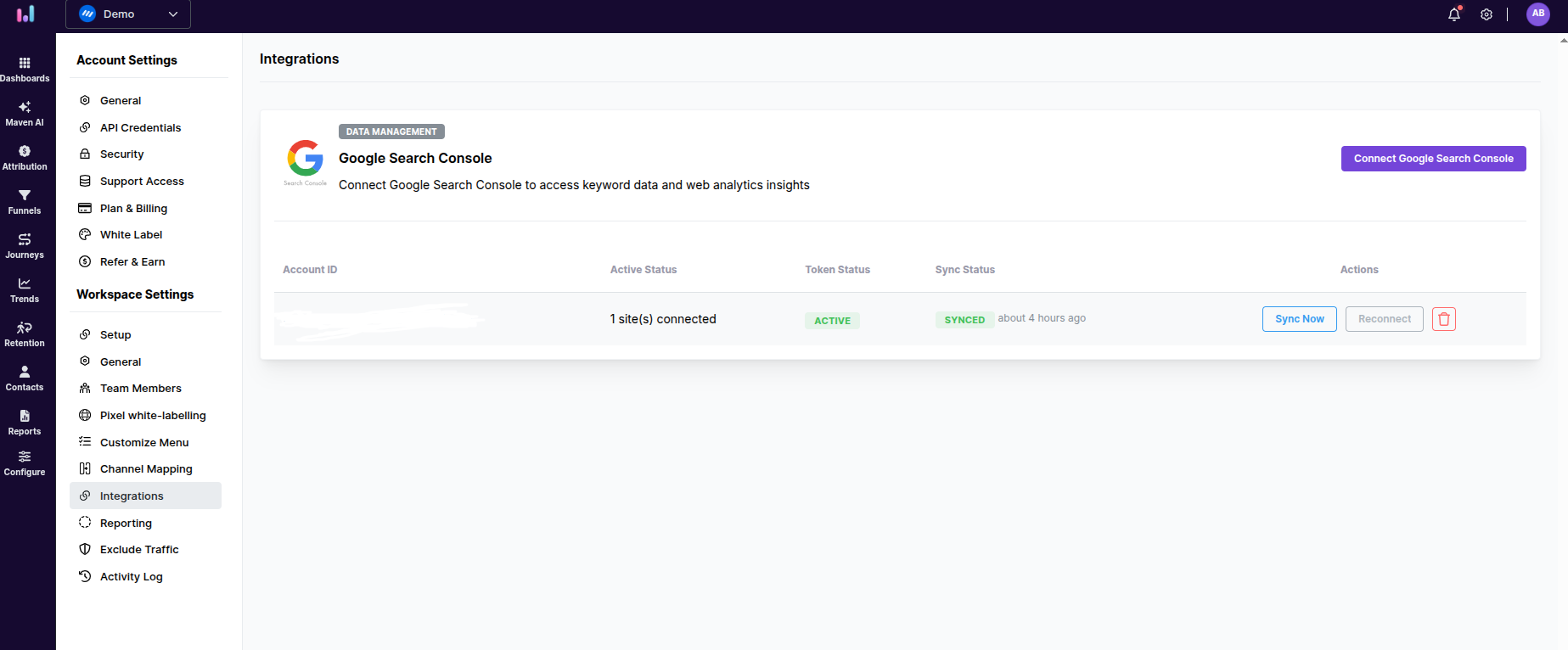
Workspace Settings → Integrations
2. Connect google search console
Click Connect Google Search Console
Sign in with your Google account
Grant read-only access
3. Select properties
Choose the verified properties you want to connect
Only domains matching your workspace will appear
4. Confirm connection
Ensure the status shows as Active
Data will begin syncing automatically

Where to find your data
Once connected, your Search Console data will appear in:
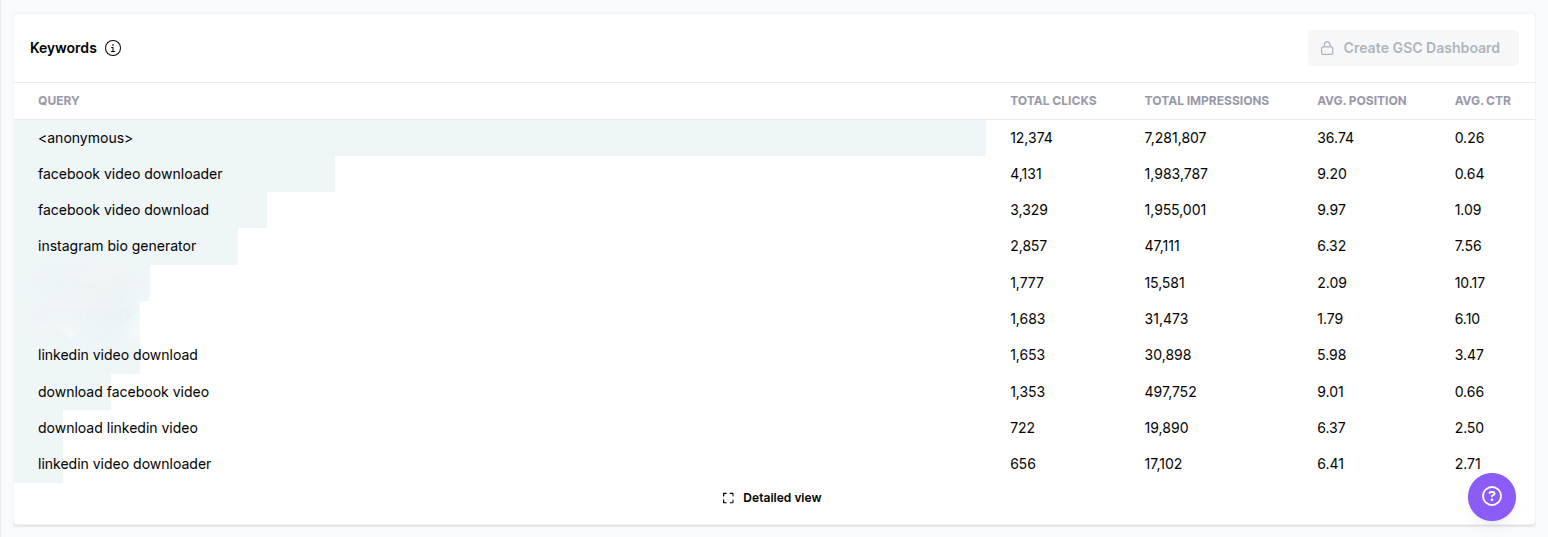
Web Analytics Dashboard – View keywords alongside traffic metrics
Keyword Explorer – Analyze search queries in detail
Important notes
Domain requirements
Only verified Search Console properties are available
Domains must match your workspace setup
Data delay
Search Console data has a 2–3 day delay (from Google)
Sync behavior
Data syncs automatically
Initial sync may take a few minutes
Troubleshooting
Property not showing
Verify the property in Google Search Console
Ensure the domain matches your workspace
Check your access permissions
Connection expired
Reconnect from the Integrations page
No data showing
Wait 2–3 days for data to appear
Confirm your site has search traffic
Was this article helpful?