

Sign up & sign in with Google
Usermaven allows you to quickly create an account or log in using your Google account—no password required.
Sign up with Google
You can create your Usermaven account instantly using Google.
Steps:
Go to the Usermaven signup page
Click “Sign Up with Google”
Select your Google account
Grant the required permissions
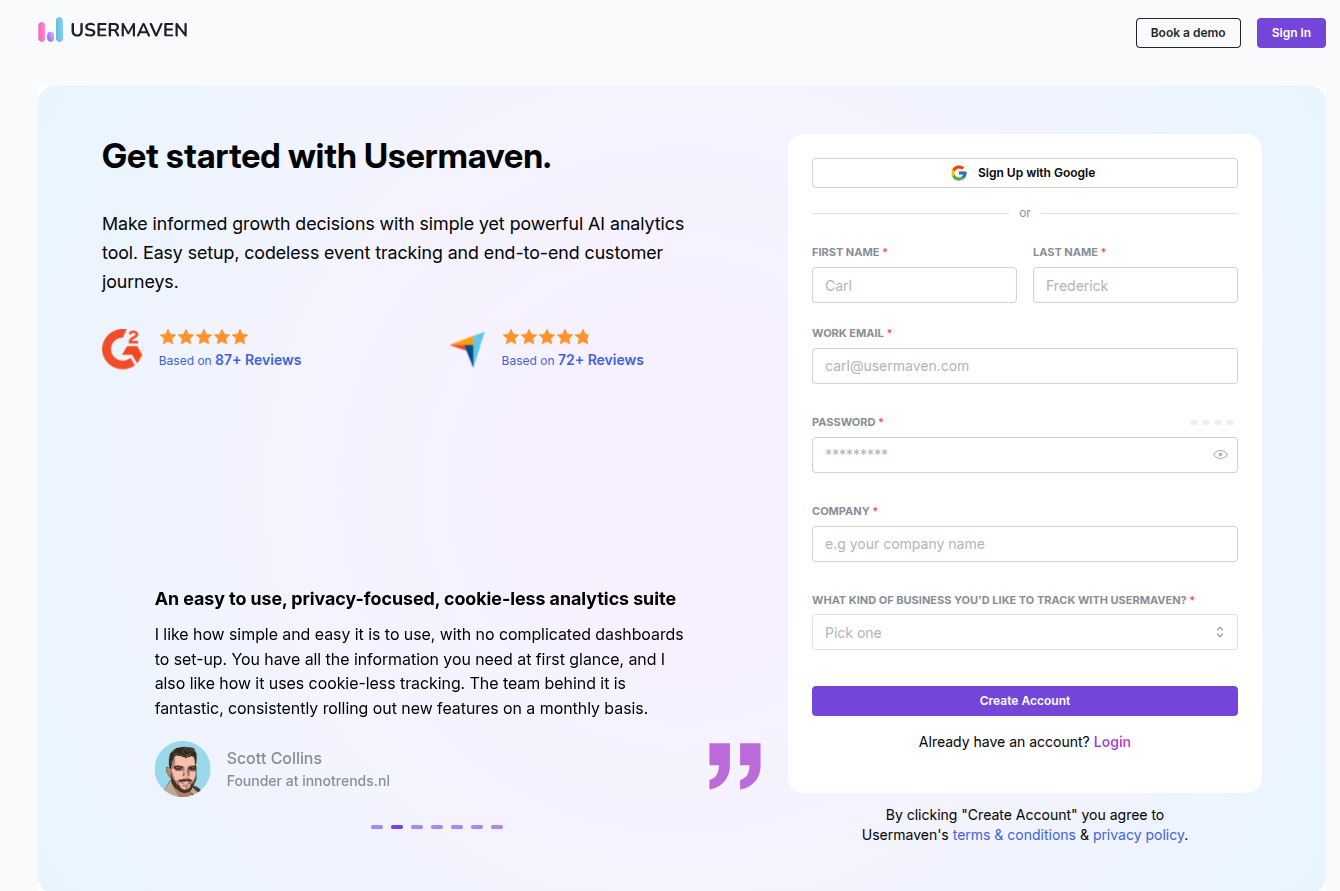
That’s it, your account will be created automatically.
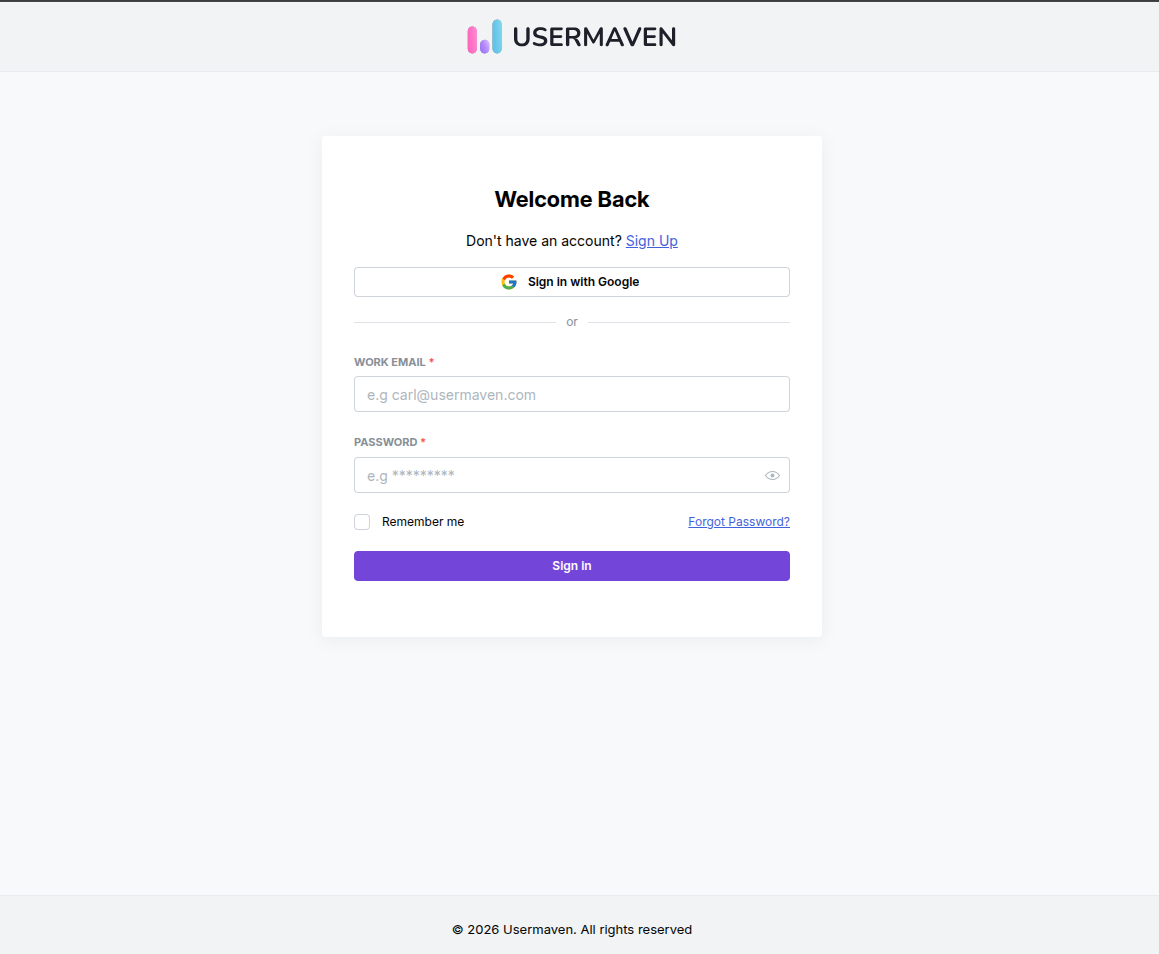
Sign in with Google
If you already have an account, you can log in using Google.
Steps:
Go to the login page
Click “Sign in with Google”
Choose your Google account
Continue to access your workspace
What happens after signing up with Google
1. Account is created automatically
Your Google email becomes your login
No password setup is required
2. Organization name is auto-generated
Usermaven automatically creates your organization name based on your email:
Work email (e.g. john@company.com) → Organization name = company.com
Gmail or personal email (e.g. john@gmail.com) → Organization name = John’s Organization
You are not asked to enter a company name during Google signup.
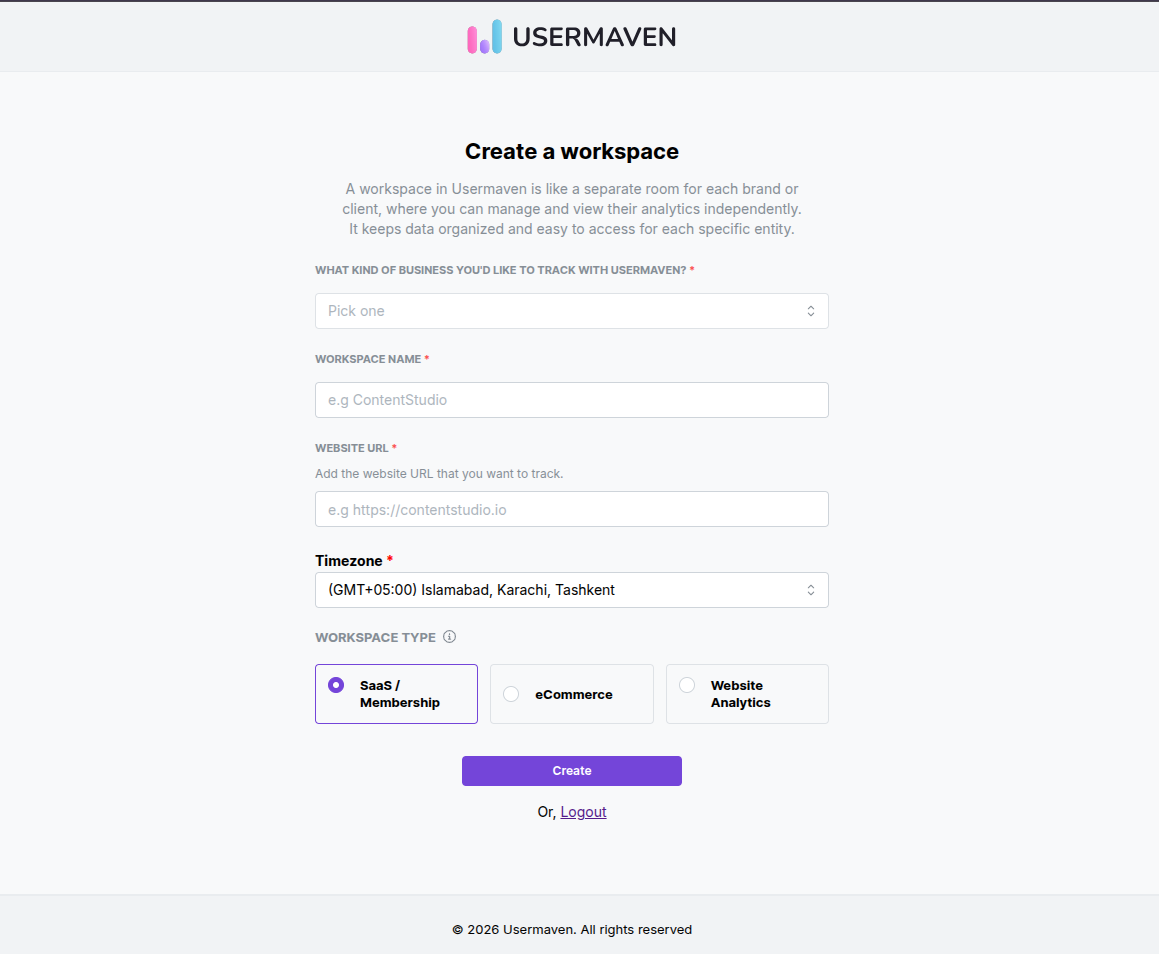
3. Workspace setup (onboarding step)
After signing up, you’ll be redirected to create your first workspace.
You’ll be asked to:
Enter your workspace name
Add your website URL
Select your timezone
Choose your business type
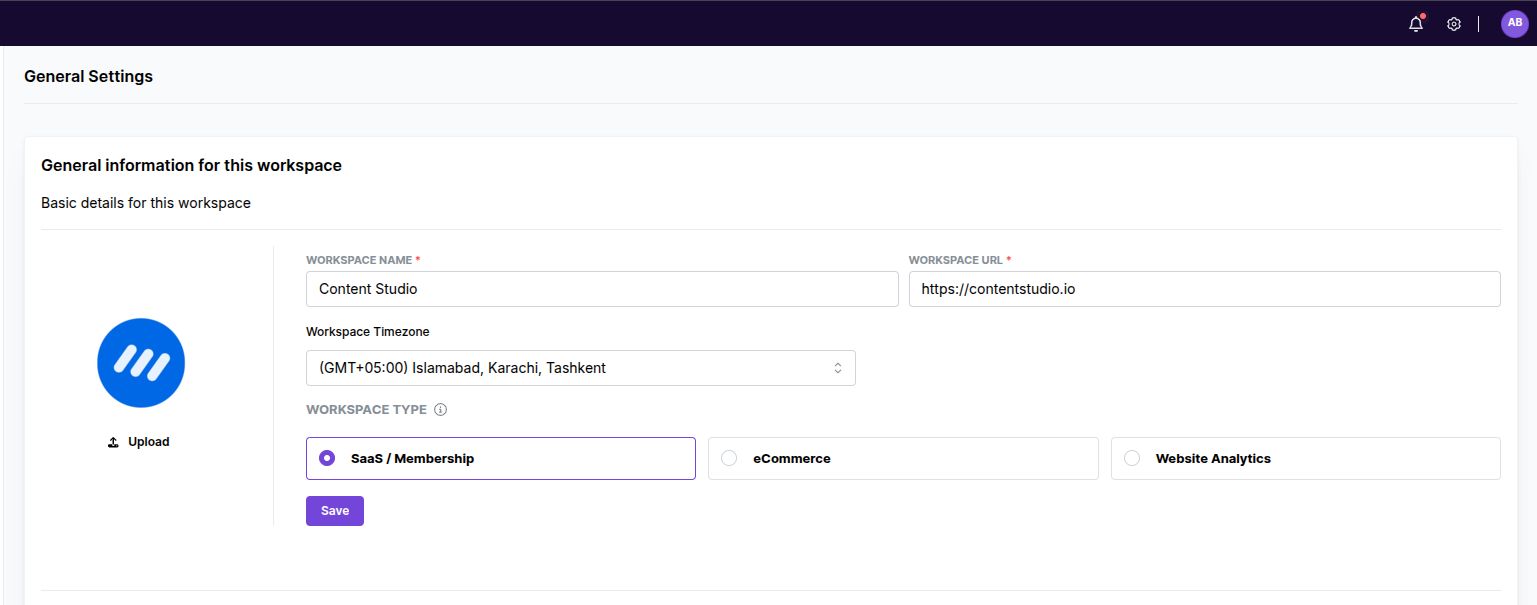
Can I change details later?
Yes, you can update:
Organization name
Business type
Workspace details
Anytime from your workspace settings.
When should I use Google sign-in?
Use Google if you:
Want a faster, one-click signup/login
Prefer not to manage passwords
Use Google Workspace for your team
Troubleshooting
Why was I not asked for my company name?
Your organization is created automatically based on your email. You can edit it later.
I signed up with Gmail. Why is my organization's name different?
For personal emails, we create a default like “[First Name]’s Organization”.
Selected the wrong Google account?
Log out and sign in again with the correct account.
Was this article helpful?